Managing a shared info@ inbox: who answers what, and when
A shared info@ mailbox works when every message has an owner: somebody who knows it is theirs, while everyone else can see it is being dealt with. A shared password cannot do that; a CRM's shared inbox can: mail arrives as conversations, can be assigned, the reply stays on the customer's timeline, and support requests go to a queue of their own.
Published: · By the HelloCRM team
The core CRM is free forever. Pre-register and be among the first in.
What is wrong with a shared password?
In most small companies info@ works like this: three people know the password and whoever has time replies. Four things usually follow: two people answer one message, nobody answers another because each thought somebody else had; nobody can see who promised the customer what; and when someone leaves, the password has to change for everyone.
The fourth is the most costly: replies stay in one person's mail program, so when the customer writes again six months later nobody can find what was said. The customer then tells the story again, and a colleague makes an offer that contradicts the earlier one because they never saw it. In a shared system that does not happen, because every earlier message and reply is on the customer's record.
What is a shared inbox in a CRM?
A shared inbox is the mail arriving at a company's common addresses, kept in one place the team handles together. In a CRM the messages appear as conversations, next to the customer who sent them, and each shows whether somebody has read it and whose it is.
In HelloCRM you connect the company mailbox under Mailboxes, and the Shared inbox module shows what arrived: a message becomes somebody's, not four people answering the same one, and the reply stays on the contact's timeline, not in a private folder. If the sender is not in the CRM yet, one press makes them a contact.
How should you share out the mail?
Details
- One message has one owner. Whoever starts on it assigns it to themselves, and the others can see that.
- What is not yours, hand on by name rather than just forwarding it.
- Have somebody look once a day at what is still unassigned.
- For holidays, name a stand-in to whom you assign the mail.
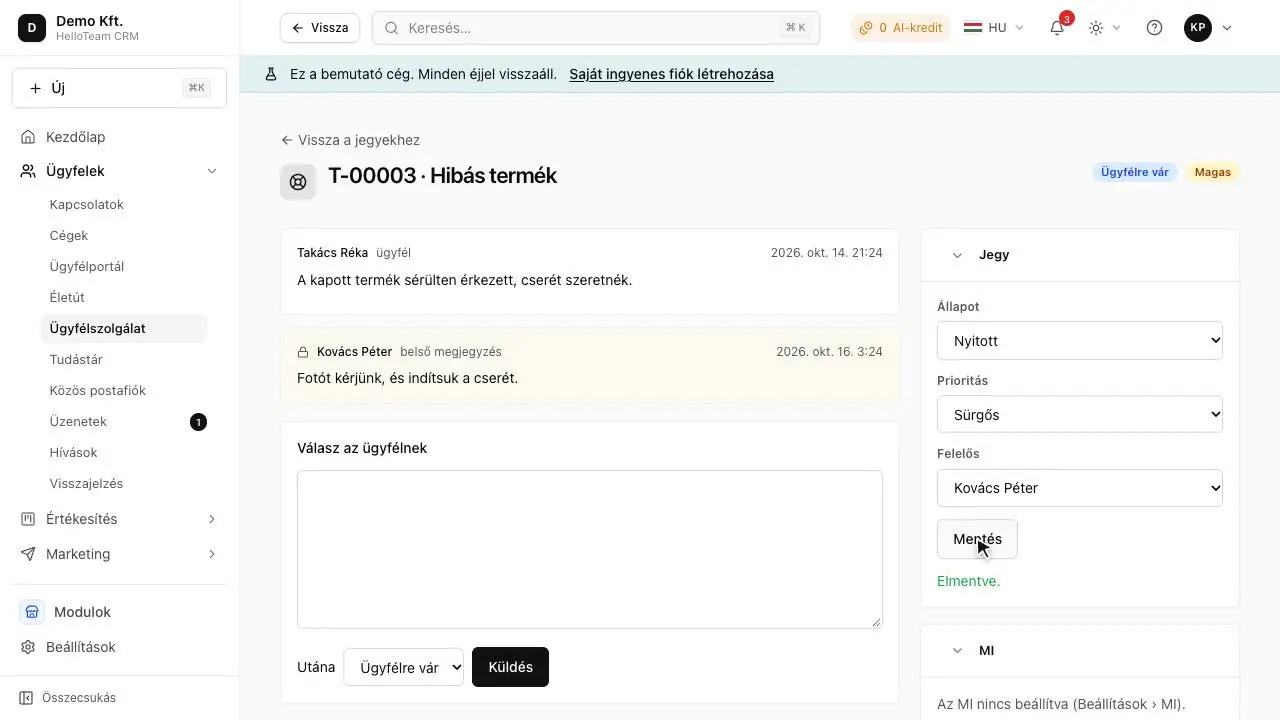
If most of the mail is support requests, let a rule do the sharing out as well: HelloCRM's helpdesk can assign tickets among colleagues in turn or to whoever has the fewest open ones, and only to people who still work there.
When should a message become a ticket?
Details
When the customer asks for something they expect an answer to by a certain time: a fault, a complaint, a question about the service. A request for a quote or a general enquiry can stay ordinary mail, but a complaint must not get lost among the rest.
In the Helpdesk module, mail to a support mailbox opens tickets by itself, with a number, an owner and a promised response time; the reply goes into the same conversation, and it shows what has waited too long. Saved replies can be kept too, so nobody retypes the same answer.
The rest of the mail needs a next step too. A request for a quote becomes a deal in the pipeline, with an owner and a next step; a request for an appointment becomes an event in the calendar; a request for a call-back becomes a task with a due date. That way the shared inbox is not a store where mail lies about, but the first step: once a message is read, it is always clear who does what with it, and by when. What is only for information (a copy of an invoice, a newsletter) can be closed by marking it read.
How do you set it up, step by step?
Details
- Connect the company's shared mailbox (info@, say) under Mailboxes, with your mail provider's access details.
- Mark it as the company's mailbox, not one colleague's: mail in a personal mailbox is seen only by its owner.
- Switch on the Shared inbox module; it has a free 3-day trial.
- Agree who looks at unassigned mail each day, and who stands in during holidays.
- If support requests are many, mark the support address as a helpdesk mailbox so it opens tickets.
- Save the answers you give often as saved replies.
Who sees what in a shared inbox?
Details
The team sees the company mailbox's mail; a colleague's personal mailbox is seen only by them. A message that belongs to a customer follows the same rule as the customer: somebody set to see only their own customers does not see other people's customers' mail in the shared inbox either.
So the shared inbox is not a way round the permissions, and a new colleague does not get a look at correspondence that is not their business.
The same holds when somebody leaves: their access ends, but their mail and replies stay with the company, on the customers' timelines. Their open mail and tasks are handed to a colleague, so nothing is left without an owner and nobody has to ask for a former colleague's password.
Which mistakes are common when you switch over?
Details
In the first weeks the same three things tend to slip. Somebody keeps replying from their old mail program out of habit, and the reply never reaches the customer's timeline. Nobody takes on the sharing out, so the list fills up with unassigned mail again. And nobody changes the shared password, so the old access stays as it was.
- Agree that info@ mail is answered only from the CRM from now on.
- For the first two weeks one person makes sure no message is left unassigned by the evening.
- After connecting it, change the mailbox password and give the new one only to the CRM.
- After a week, look together at what got stuck and adjust the rules.
Which habits keep it in order?
Details
- Going through the unassigned mail once in the morning and once in the afternoon.
- Not leaving finished conversations marked unread.
- Recording a promise to a customer (a call-back, a quote) as a task with a due date.
- Keeping internal discussion in a note rather than in the mail thread.
- Handing a leaver's open mail and tasks to somebody when they go.
In short
A shared info@ mailbox works when every message has an owner and everyone else can see who is dealing with it. In a CRM's shared inbox messages can be assigned, the reply stays on the customer's timeline, and support requests become tickets with a promised response time.
Where to read on
Questions
Do I need a new email address?
No: you connect your existing info@ address, and mail arrives where it always did.
Can a colleague see my personal mail?
No: mail in a personal mailbox is seen only by its owner; the shared inbox holds the company mailbox's mail.
What is the difference between the shared inbox and the helpdesk?
The shared inbox suits any mail and lets you assign it; the helpdesk turns support requests into tickets with a number and a promised response time.
Is the shared inbox free?
Connecting your own mailbox is part of the free core; the Shared inbox module is a paid add-on with a free 3-day trial.